How to Capture Professional Passport Photos at Home in 2026
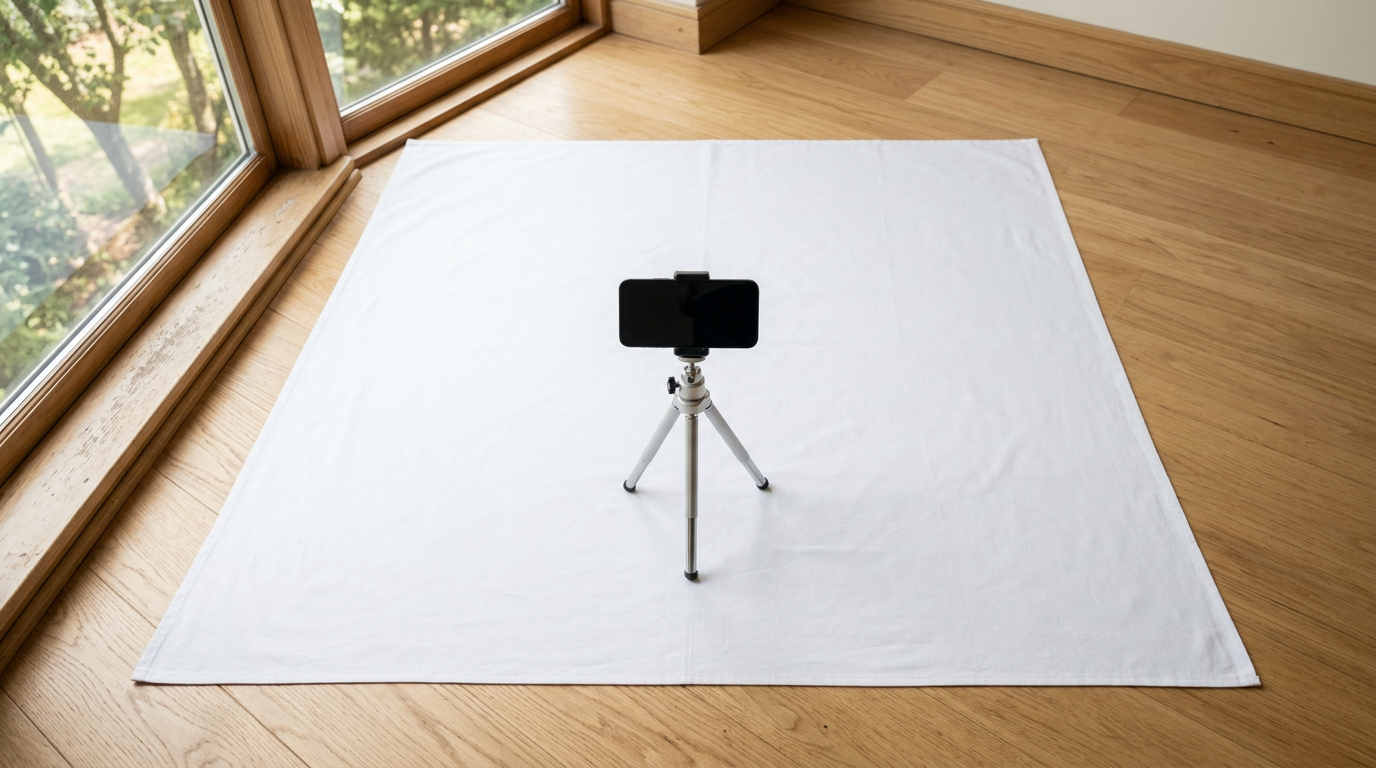
Most parents assume the hardest part of an international travel application is the paperwork, right up until they try to hold a three-week-old newborn steady under the fluorescent lights of a retail pharmacy. Taking passport photos at home shifts the challenge from managing a public meltdown to mastering strict biometric compliance. Government verification systems do not care about the difficulty of the subject; they reject images for background shadows you barely notice and dimensional errors measured in millimeters. The process requires treating your living room like a controlled biometric environment, prioritizing uniform lighting and exact facial positioning over standard photographic aesthetics.
Quick Summary
Capturing biometric images requires replicating professional lighting, positioning the subject against a neutral background, and adhering to strict dimensional guidelines before submission. Succeeding on the first attempt depends on eliminating shadows and ensuring the camera lens sits exactly at eye level.
- Utilize indirect natural light to eliminate background and facial shadows.
- Maintain a strict distance of 1.5 meters between the camera and the subject.
- Position infants on a firm, flat surface rather than holding them upright.
- Format the final image to exact regional millimeter dimensions before printing or uploading.
Table of Contents
- Why taking passport photos at home usually fails on the first try
- 1. Preparing the lighting and the environment
- 2. Positioning the infant or toddler correctly
- 3. Managing the camera settings and capture
- 4. Ensuring strict dimensional compliance
- 5. Editing and preparing the file for digital or physical submission
- Common Pitfalls & Troubleshooting
- FAQ
- Recommended Reads
Why taking passport photos at home usually fails on the first try
The primary reason biometric submissions fail is not camera quality, but environmental control. Modern smartphone sensors automatically attempt to balance scenes by artificially sharpening edges and adjusting exposure, which often creates non-compliant contrast on a subject's face. When you attempt this process without modifying the environment, the camera software fights the biometric requirements. Government standards demand flat, even illumination with zero artistic depth of field. Understanding How to Meet Strict Government Passport Photo Requirements at Home means overriding your camera's default instinct to make a photo look attractive, forcing it instead to record an accurate, flat topographic map of the applicant's face. If you do not control the light source, the background color, and the subject's posture, the automated compliance software at the passport office will reject the file instantly.
1. Preparing the lighting and the environment
Lighting is the single most common failure point for biometric image submissions. You cannot rely on standard overhead room lighting, which casts distinct shadows under the eyebrows, nose, and chin. These downward shadows alter the perceived shape of facial features in automated scanning systems. The environment must be flooded with diffuse, indirect light. The most effective setup involves placing the subject facing a large window during daylight hours, ensuring the sun is not beaming directly into the room. Direct sunlight creates harsh contrast, overexposing one side of the face while leaving the other in deep shadow.
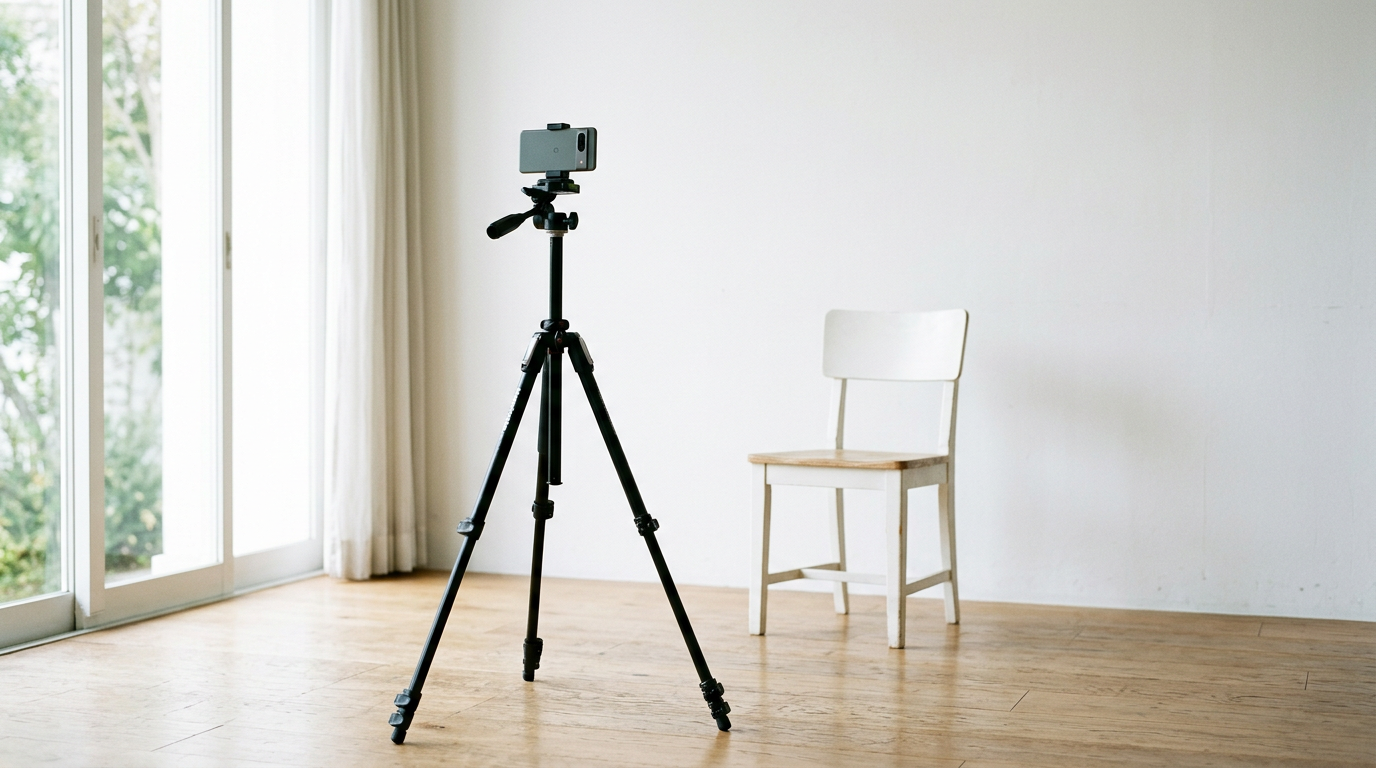
Behind the subject, you must secure a proper background. While achieving a strict passport photo white background is often required (though some countries specify light grey or cream), hanging a wrinkled bedsheet will fail the compliance check. Creases and folds create their own shadows, which the processing software interprets as background noise or physical objects. Use a large piece of rigid white poster board, or pull a tightly ironed sheet taut across a solid frame. The background must be positioned close enough to the subject to capture the required frame, but far enough away to prevent the subject from casting a harsh shadow against it. If shadows appear on the background, move the subject half a meter forward.
2. Positioning the infant or toddler correctly
Adults can follow instructions to stand straight and look into a lens; infants cannot. Attempting to hold a newborn upright for a biometric image almost guarantees failure, as parents' hands or clothing will inevitably intrude into the frame, violating strict isolation rules. The mechanics of newborn positioning require placing them flat on their back on a firm surface, such as the floor or a firm mattress, covered with the compliant background material.
Practical rule: Never capture a baby's image from an angle; the camera lens must be perfectly parallel to the floor and directly above the bridge of the baby's nose.
For toddlers who can sit independently, place them in a high chair draped with the background material, positioned facing the natural light source. The mistake most parents make here is standing too close. When the camera is within a meter of the subject, the wide-angle nature of modern smartphone lenses distorts facial proportions, enlarging the nose and narrowing the ears. You must stand at least 1.5 meters away and rely on optical zoom (not digital pinch-to-zoom) to frame the subject. Figuring out How to Take a Compliant Newborn Passport Photo at Home dictates that the baby's head must be straight, with both ears equally visible, and eyes open. Pacifiers, headbands, and high-collared shirts must be removed, as anything obscuring the jawline or forehead results in automatic rejection.
3. Managing the camera settings and capture
Standard camera apps default to portrait modes that blur the background and adjust skin tones. These settings must be disabled. Biometric requirements mandate infinite depth of field, meaning the tip of the nose and the background behind the ears must be equally in focus. If you want to know how to take the best passport photo, you must switch off all beauty filters, AI enhancements, and portrait effects.
The flash should almost always be disabled. Built-in smartphone flashes fire directly at the subject, bouncing off the skin and creating bright white hotspots on the forehead and cheeks, which automated systems interpret as missing biometric data. Furthermore, direct flash inevitably casts a harsh, sharp shadow directly behind the subject's head. Rely entirely on the diffuse window light you set up in step one. Take multiple photos in rapid succession to account for blinking, especially with infants. Ensure the lens is wiped completely clean before starting; even a minor smudge on a smartphone lens diffuses light and reduces the sharp contrast required for biometric scanning.
4. Ensuring strict dimensional compliance
Capturing a well-lit photo is only half the battle; the geometry of the final crop dictates its acceptance. Government systems do not look at the overall image size first; they measure the distance from the bottom of the chin to the crown of the head. For example, British Passport Photo Requirements in 2026: A Step-by-Step Compliance Guide demand that this specific facial measurement occupies between 29mm and 34mm of a 35x45mm image. If the head is too large or too small within the frame, the application is rejected, regardless of the lighting quality.
The mistake people actually make here is cropping the image manually using a standard smartphone photo app without understanding the required passport photo resolution and millimeter dimensions. Standard cropping tools lock to arbitrary aspect ratios (like 4:3 or 16:9) rather than strict biometric ratios. Furthermore, resolution matters deeply. The final file must generally be at least 600 DPI (dots per inch) for physical printing, or a minimum pixel dimension (often 600x600 pixels for US standards) for digital uploads. Compressing the image by sending it through a messaging app before printing degrades this resolution, introducing compression artifacts that fail automated quality checks.
5. Editing and preparing the file for digital or physical submission
Physical alteration of a biometric image is strictly prohibited. You cannot use software to remove blemishes, red-eye, or background shadows manually. If the lighting is incorrect, the photo must be retaken; painting over a shadow with a white digital brush is considered image manipulation and is grounds for immediate rejection and potential fraud flags.
The only permitted digital preparation involves cropping to the exact specified dimensions and formatting the file for the submission medium. If you are learning how to get passport photos printed at a local kiosk, the single 35x45mm or 2x2 inch image must usually be laid out on a standard 4x6 inch photo template. Most retail photo kiosks do not automatically scale single biometric files correctly, resulting in printed images that are either massively oversized or slightly distorted. Learning How to Prepare a Compliant Passport Size Photo: Officeworks and Home Tool Setup Guide involves using specialized formatting tools that place multiple compliant copies onto a single standard print size, ensuring that when the 4x6 inch sheet is printed at 100% scale, the individual passport photos can be cut out at their exact, required dimensions.
Common Pitfalls & Troubleshooting
Biometric rejections rarely come with detailed explanations. When a file fails, it usually falls into one of these distinct failure modes, each requiring a specific intervention rather than a general retake.
1. The 'Invisible' Background Shadow
Symptom: The image looks perfect on a phone screen, but the online checker rejects it for background interference. Fix: The background isn't as flatly lit as it appears. Move the subject at least 50 centimeters further away from the backdrop to allow ambient light to fall between them and the background material. This is the most frequent real cause of automated rejection.
2. Biometric Proportion Failure
Symptom: The system states the head size is incorrect, even though the image dimensions (e.g., 2x2 inches) are right. Fix: The overall crop is wrong. You must re-crop the original, wider image. Measure from the very bottom of the chin to the top of the head (ignoring hair volume). Adjust the crop bounds until this specific measurement fits the exact millimeter range required by your region.
3. Uneven Facial Illumination
Symptom: Rejection citing 'poor contrast' or 'shadows on face'. Fix: The subject was lit from one side. Turn the subject so they directly face the primary light source (the window). If one side of the face remains slightly darker, place a white piece of cardstock just out of frame on the dark side to bounce light back onto the cheek.
4. Resolution Degradation
Symptom: The printed photo looks slightly fuzzy or pixelated, or the upload portal cites 'file size too low'. Fix: The original photo was compressed during transfer. Never send biometric files via WhatsApp, iMessage, or standard email attachments that compress images. Transfer the original file via a direct cloud link (Google Drive, Dropbox) or a direct cable connection to preserve the native sensor data.
FAQ
Can I wear glasses in a biometric image?
No. The vast majority of international authorities, including the US, UK, and Australia, strictly prohibit all eyeglasses in biometric images due to the risk of glare and frame interference with eye recognition software. They must be removed completely.
Is a white wall sufficient for the background?
A white wall is only sufficient if it has no texture, no scuff marks, and is evenly lit. Most household walls have a slight sheen or texture that casts micro-shadows under flash or bright light. A dedicated matte white or grey poster board is significantly safer.
How recent does the photograph need to be?
Rules universally dictate the photo must have been taken within the last six months. For infants whose appearance changes rapidly, it is safer to capture the image within a week of submitting the application.
Can a baby's mouth be open in the shot?
Most jurisdictions offer slight leniency for newborns and infants under one year old regarding closed mouths and perfect eye contact. However, pacifiers and visible teeth (for older toddlers) are strictly prohibited, and aiming for a closed, neutral expression remains the safest approach.